Overview:
Where large numbers of records are being updated it is likely to be more efficient to do this offline than to edit each record using the online process.
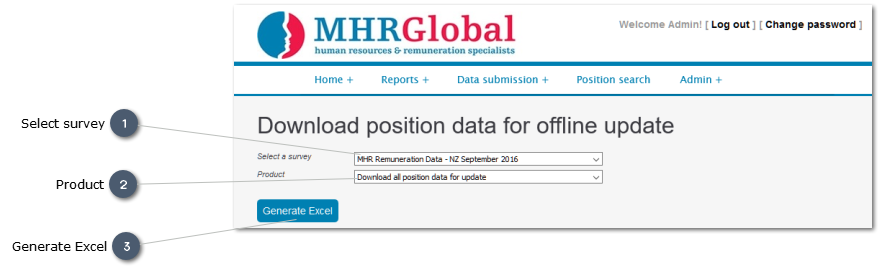
Offline editing is completed using a spreadsheet downloaded from the insightpay RemData site. To request this spreadsheet click on the "Download position data for update" link on the main Data Submission screen, and complete the form shown here:
 Select surveySelect the Survey for which records are required.
Generally this would be the survey for which data is currently being collected for update and analysis. You can however use this process to download data from a previous survey to which you have contributed.
You cannot edit or upload data for a previous survey however as all records are locked.
|
|
 Product
Select the default option of "Download all . . . " to download a spreadsheet containing all your existing data.
Use the droplist to select a specific Product (Top Executive; General Staff; Industry) if you wish to submit data for each group separately.
|
|
 Generate ExcelThis generates the Excel spreadsheet, which is downloaded directly to your PC. Typically it will be downloaded to your "Downloads" directory.
The spreadsheet should generally be received within a few minutes of your request being submitted; very large spreadsheets may take longer.
Note: This process differs from the previous version of the insightpay RemData site, which used email processes to deliver the spreadsheet.
The new version of insightpay RemData downloads the spreadsheet directly to your PC, allowing you to access it locally.
|
|