


Create Working Model Spreadsheet
Overview:
Some users may find it useful to create a "working model" spreadsheet to sort and update data before copying it to the insightpay spreadsheet for submission. Creating a copy of the data in the insightpay spreadsheet allows data to be sorted and filtered, and allows the use of formulae to calculate and update data fields.
To submit your data however the updated data must be copied back to the insightpay spreadsheet before uploading to the RemData website.
Create a working model: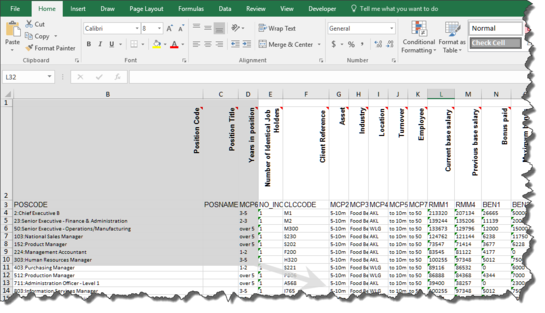
To create a working model which is free of the restrictions imposed by the insightpay spreadsheet:
-
Login to the RemData site and download the insightpay spreadsheet which contains your existing data
-
When the spreadsheet is received save it to your local drive
-
Open the spreadsheet and copy the data:
-
Select Cell B1 (Column A is hidden in the insightpay spreadsheet, and cannot be accessed)
-
Hold the <Shift> key down and drag to Cell AEnn (where nn is the Row number for your last record) to select the range, as illustrated
-
Use <Ctrl> + <C> to copy the data
-
Open a new empty spreadsheet, and paste the data to it:
-
Select Cell B1
-
Leave Column A (Cell A1) empty
-
Use <Ctrl> + <V> to paste the copied data.
You may now sort and filter the data in the new spreadsheet, without the restrictions inherent in the insightpay spreadsheet.
If necessary you may insert additional columns to allow you to create formulae. To ensure that the required data fields are retained in the original order however we suggest that any additional columns you wish to add are created after column AE. This ensures these columns do not need to be deleted before copying data back to the insightpay spreadsheet.
Copy Data back to insightpay Spreadsheet:
Once your data has been updated: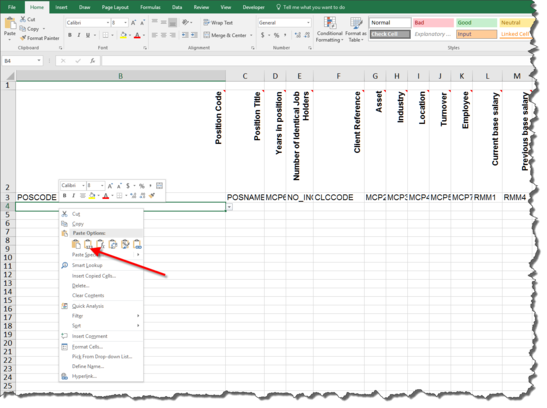
-
Check your spreadsheet to ensure Columns B to AE are in the same order as those in the insightpay spreadsheet
-
If you have created additional columns between the insightpay ones, these will need to be moved to the right, after the "Other" data field (Column AE)
-
Open the original spreadsheet downloaded from the RemData site
-
Delete the existing data:
-
Select Cell B4 (i.e. the first cell of the first data record) and drag to Cell AEnn (as above)
-
Use <Ctrl> + <X> or <Del> to delete the data
-
Return to your working spreadsheet and select Cell B4 (i.e. the first cell of the first data record) and drag to Cell AEnn (as above)
-
Use <Ctrl> + <C> to copy the data
-
Do not include any additional columns in the range you copy
-
Go back to the insightpay spreadsheet and select Cell B4 (which should now be empty)
-
Use the Edit - Paste special - Values command to paste the values of the data from your working spreadsheet
-
This avoids pasting any formulae which may not work in the insightpay spreadsheet
-
Save the updated insightpay spreadsheet
-
Upload it to the insightpay RemData site following the instructions in the Upload position data section of this guide