


Download Data from Payroll
Overview:
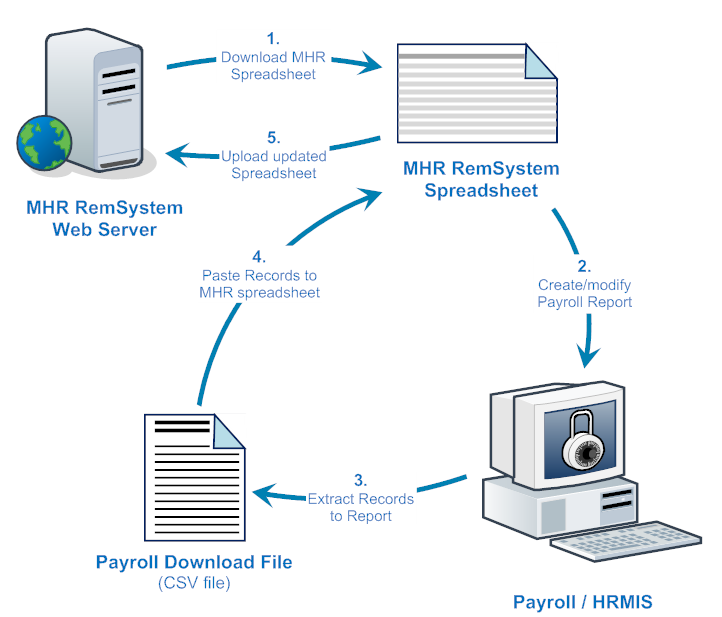
The insightpay Remuneration Service (“insightpay RemData”) site provides an option which allows users to extract selected data from their payroll or HR Management Information System in a format which is accepted by the insightpay system.
Because there are so many different Payroll/HRMI systems in use in New Zealand it is not practical to provide detailed guidelines tailored for every system available.
The guidelines provided below set out the principles that need to be followed, in developing a payroll download process using your system’s Report Writer.
Preparing the Payroll System
The first step is to prepare the payroll system to record the information needed in the insightpay Remuneration Service. This requires the allocation of
three specific fields in the payroll system. These fields are:
• insightpay Position Code
-
The code which identifies the insightpay benchmark position against which the role is compared, and for which data is submitted.
insightpay Car Code
-
The code which identifies the class of car provided
• insightpay Home Telecommunications Code
-
Identifying the level of benefit for employer support of a home telecommunications services
Details of the codes used in each of these fields are included in the tabbed worksheets on the Excel Data Submission spreadsheet downloaded from the insightpay RemData service.
Once these fields have been created, you will need to update your payroll records to ensure that for any role which is to be included in your data submission these fields include the data required for the insightpay RemData service.
Where there are limited options to include user-defined fields, priority should be given to creating the insightpay Position Code field, as this is used to select the records for inclusion in your update.
The insightpay Car Code and insightpay Home Telecommunications Code values can be added to the individual records manually if needed, once the data has been extracted from the payroll/HRMI system and can be viewed in MS Excel.
Creating the Report Output:
Most widely available payroll and HRMI systems have some form of Report Writer which enables the user to create user-defined reports which extract specified fields of data for individual records meeting defined criteria. You need to use this system to create a CSV (“Comma Separated Values”) file which can be read by Excel, for use in submitting data.
The criteria used to select the records for submission needs to include a filter to select only those records for which the insightpay benchmark position code is recorded.
The fields required can be obtained from the website after the survey opens for data collection. Please download the latest spreadsheet as data fields may change from time to time, and the website will always be up to date.
Obtain the current List of fields:
Once the insightpay site opens for data submission the latest format for the data submission can be downloaded.
To do this follow the process set out in the Offline Update Process section of this guide.
Updating the insightpay Spreadsheet:
The steps set out in the previous sections will assist you in downloading the Excel spreadsheet for you to enter data off-line. This is the file on which you will have to submit your data.
Note:
You need to retain this file for use later in the process, as data cannot be uploaded to the insightpay system on any spreadsheet other than that downloaded from our system. You will therefore need to copy your updated data to this spreadsheet, overwriting the existing data, in order to upload the updated data to the insightpay system.
Update your Payroll Report:
Once you receive the insightpay spreadsheet, create or edit the existing user defined report from your Payroll/HRMIS to ensure that the correct fields are included, in the same order as in the insightpay generated file.
Note that:
The fields containing the Asset Value, Turnover, Staff numbers, Industry and Location codes can be included in the report as constants; they do not need to be recorded in the payroll/HRMIS.
While you need to provide a field for the designation of the position (Column B of the insightpay spreadsheet), this field can be left blank for each record; provided the insightpay Position reference is given (in Column A) the insightpay system will enter the position designation.
Similarly, if you cannot extract the Motor Vehicle and Home Telecommunications details from your Payroll/HRMI system, these may be created as empty fields in your report. The insightpay code can then be entered directly to the insightpay spreadsheet once you copy your records across to it.
Checking your Data:
Open the completed payroll report in Excel, and select the range containing all your updated data.
Paste these into Cell B4 of the file emailed by insightpay then save the file.
When you have completed this, please check your spreadsheet for accuracy, modifying any field where data is missing, or where data may be inaccurate.
Uploading your data:
Once the spreadsheet data is accurate follow the process set out in the Upload position data section of this guide to submit your data.
Comment:
Please feel free to email your initial report to us for checking, as we are happy to provide guidance on whether or not it will meet the requirements for data submission